
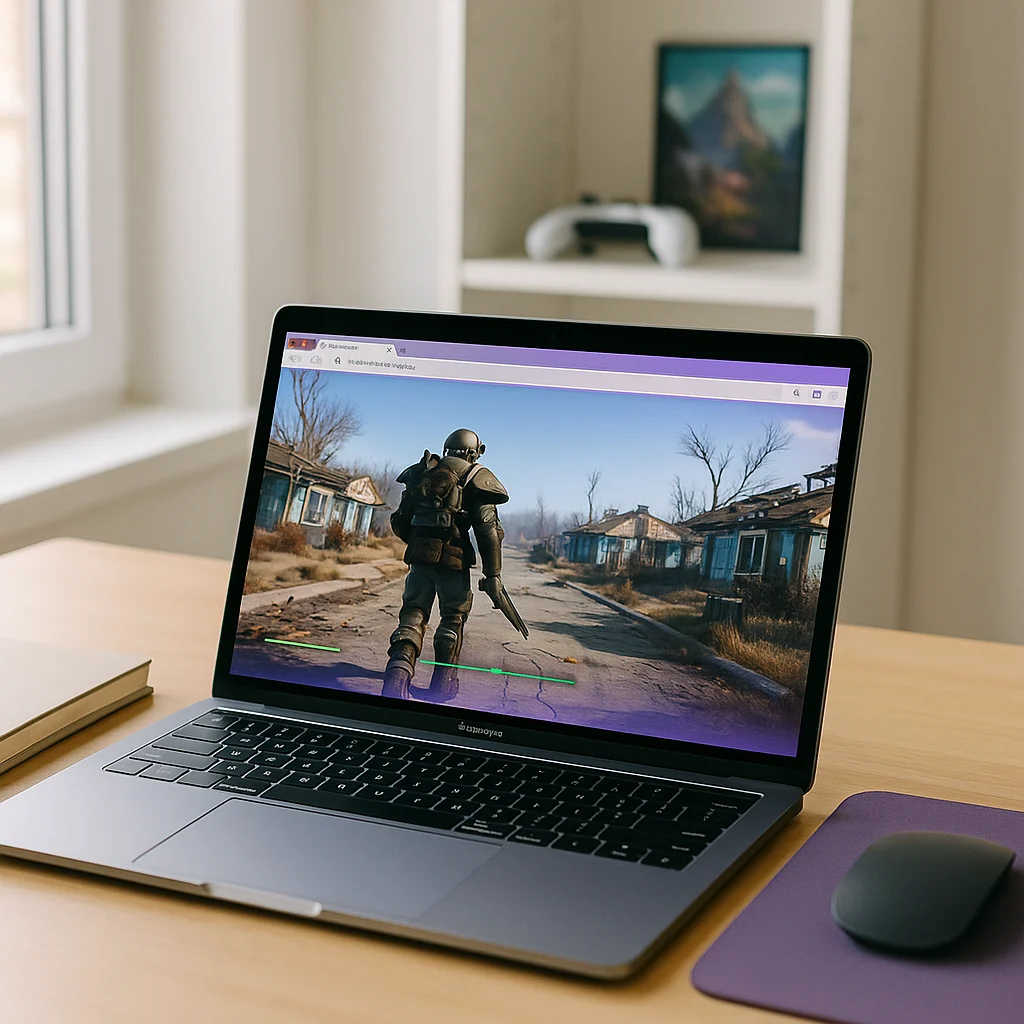
How to Play Fallout 4 on Mac
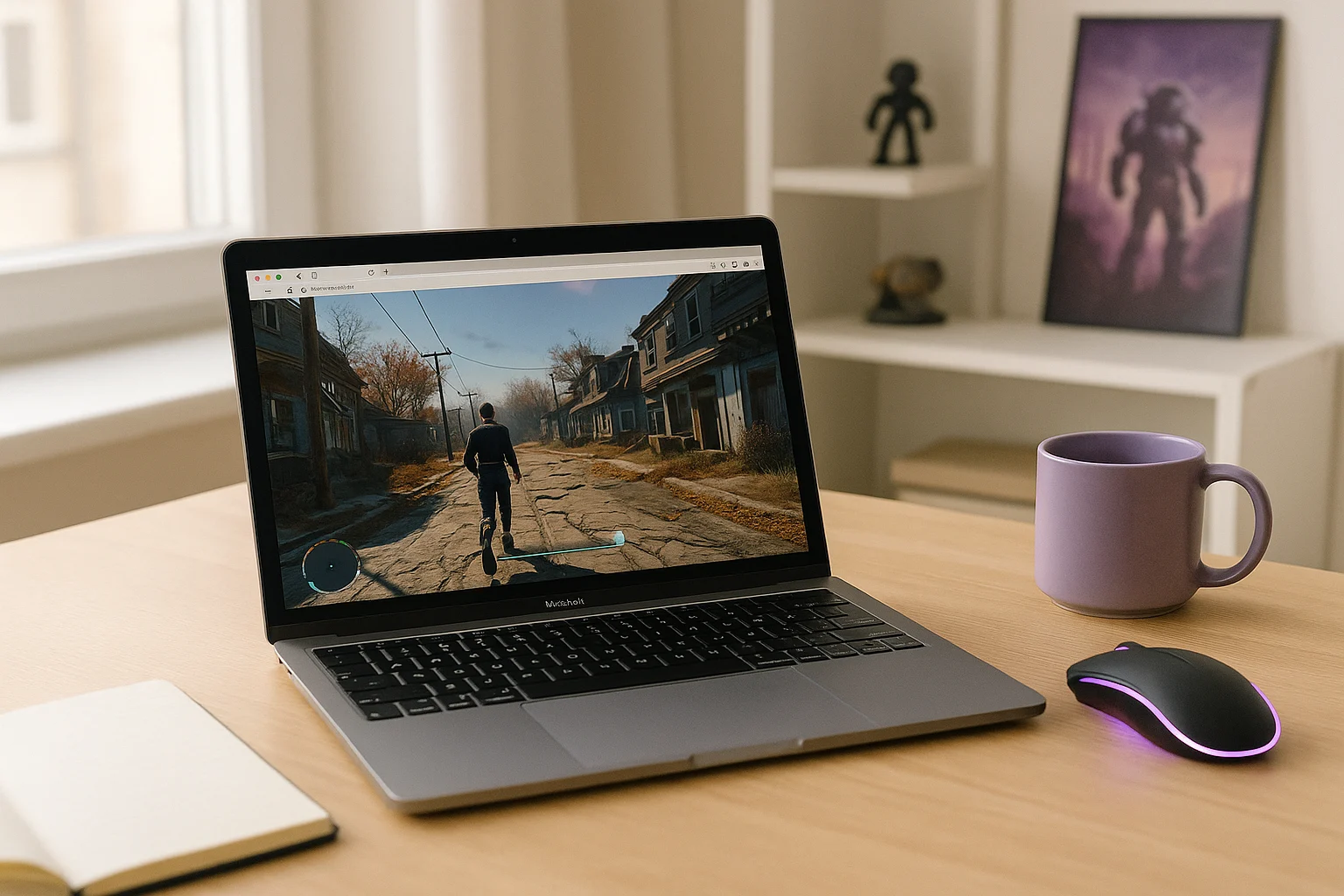
Getting Fallout 4 running on a Mac can take a different approach from playing it on a Windows PC. The main challenge is not the game itself, but finding a practical way to access the Windows version on macOS without turning the process into a lengthy setup.
For players searching for how to play Fallout 4 on Mac, the choice usually comes down to how they want to handle that setup. Compatibility tools, virtual machines, or remote access can each provide a different route, but they also come with their own requirements and limitations. The key is finding an option that gives you reliable access to the game without unnecessary technical work.
Buying a Gaming PC for Fallout 4 Mac Access
Some players consider buying a gaming PC because it avoids the macOS compatibility question altogether. For a game like Fallout 4, that can sound like the cleanest local answer: use hardware and an operating system built around the PC version instead of forcing the Mac to adapt. It is understandable, especially if you want the standard desktop experience.
The downside is that this is a large step for one game or even for a small group of PC-only titles. Buying another machine means extra cost, extra space, another device to maintain, and a split setup between your Mac and a separate gaming system. For someone who mainly wants to play on the Mac they already own, this workaround often solves compatibility by creating a bigger commitment than the original problem justified.
A Simpler Way to Play Fallout 4 on MacOS
A streamed approach changes where the game actually runs. Instead of depending on your Mac to handle the PC version locally, the game runs in a cloud environment and your device receives video, audio, and your inputs back and forth. That makes it possible to access the game from a Mac without turning local compatibility into the main project.
Compared with buying a gaming PC, this route is lighter and more flexible. You are not adding another full machine just to reach one title, and you avoid tying your play sessions to separate hardware ownership and upkeep. For players focused on play Fallout 4 on macOS with less friction, cloud streaming is often the more practical fit.
How Aristeem Play Fits Fallout 4 on Mac
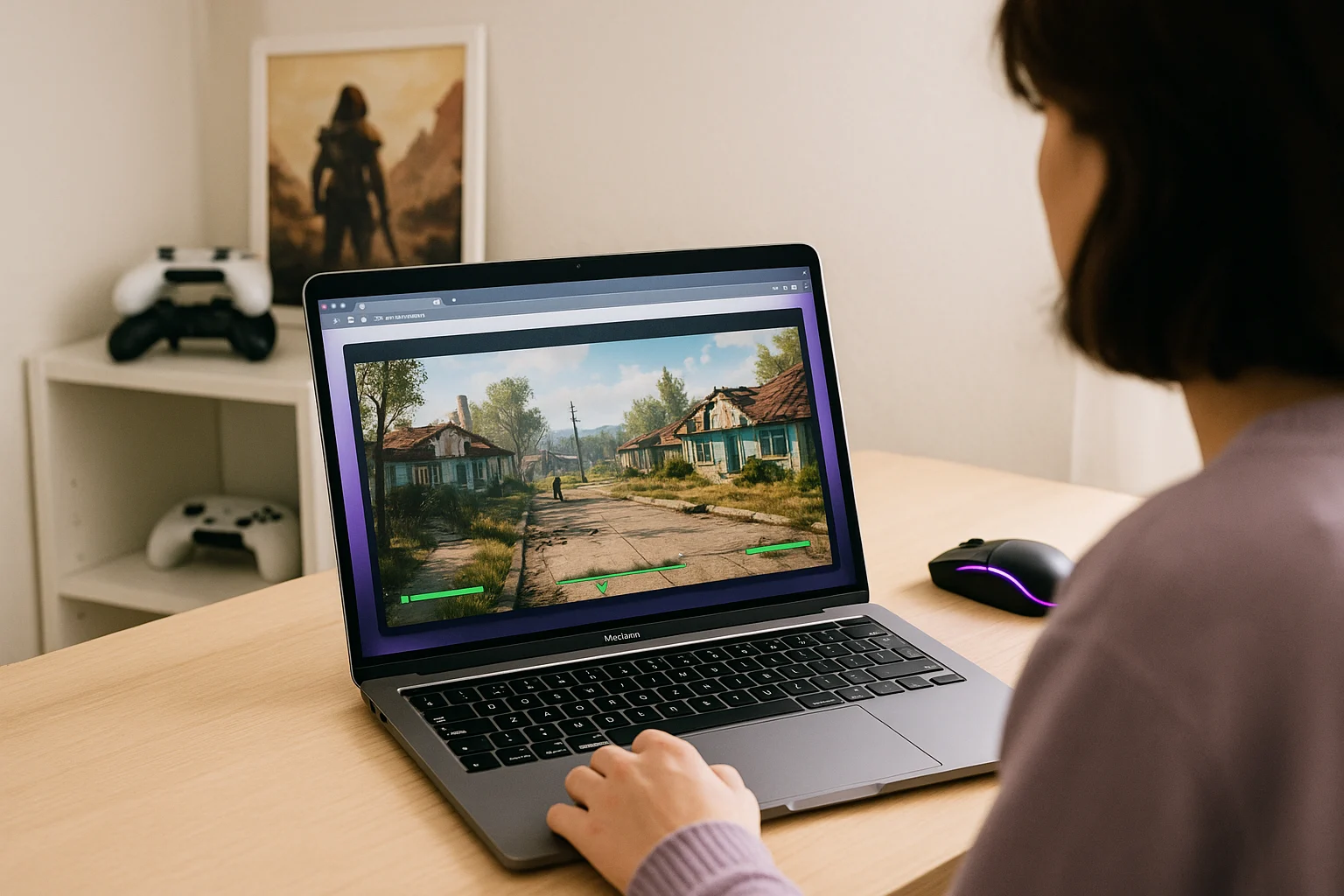
With Aristeem Play, you open the Game Library, choose the title, and click Install & Play instead of trying to install it on your Mac. The game runs on Aristeem’s cloud hardware while only video, audio, and input are streamed to your device, so local Mac hardware is not doing the main work of running the PC game. Depending on the title, you may need to sign in to Steam, Epic, or another game store account after launching the session.
That makes it a practical option for players who want Fallout 4 on Mac without committing to a separate gaming PC. Rather than building a second setup around one game, you keep using your Mac and access the game through the browser-based platform. The result is a cleaner path for players who care more about getting into the game than managing another device. If you want to compare the alternatives to running Fallout 4 locally on your Mac, see our guide to playing Fallout 4 on Mac with local setup or cloud gaming.
Choosing the Right Route for Fallout 4 on Mac
If your main obstacle with Fallout 4 on Mac is avoiding complicated local setup or the expense of separate hardware, a streamed option makes more sense than building a whole second gaming system. Aristeem Play is practical here because the game runs on cloud hardware instead of your Mac, which is exactly why playing Fallout 4 on Mac through a browser-based session can be the simpler route.