

Forza Horizon 5 Cloud Save and the Risk of Lost Progress
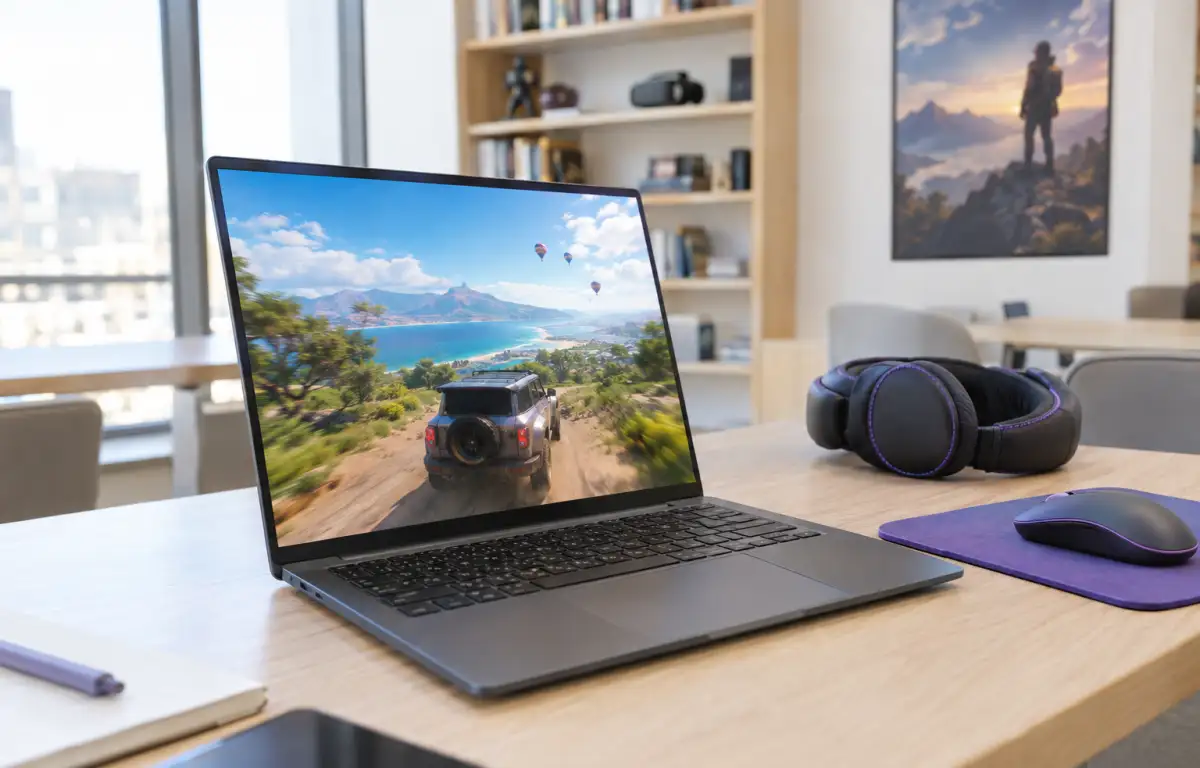
Forza Horizon 5 saves your game progress through the cloud synchronization system supported by your game version. This allows you to access your existing progress when playing on another compatible device, provided you use the account associated with your save. Your cars, credits, completed events, and other achievements remain linked to your game profile rather than requiring you to transfer save files manually.
This matters when switching computers, reinstalling the game, or returning after a break. Before starting a new session on another device, make sure the previous session has finished synchronizing and that you are using the correct account. This helps prevent conflicts between local and cloud data.
How to Avoid Forza Horizon 5 Cloud Save Conflicts
Save conflicts can occur when you launch Forza Horizon 5 on another device before the previous session has finished synchronizing. In this situation, the game may need to reconcile local and cloud data before allowing you to continue. If you are asked to choose between two save files, do not make the decision based only on which one appears first.
Forza Support advises players never to cancel an active save synchronization. Interrupting the process can put saved data at risk of corruption or being overwritten. If the game displays a synchronization prompt, allow it to finish before proceeding. When progress appears to be missing, avoid deleting local or cloud saves until you have followed the official recovery instructions.
A few precautions can help reduce these problems:
- Close the game normally after finishing a session.
- Allow the save synchronization process to complete.
- Use the same store account associated with your existing progress.
- Check that the game has finished updating before launching it on another device.
- Never cancel a synchronization prompt to speed up the launch.
What Cloud Gaming Changes About Forza Horizon 5 Access
Cloud gaming changes how you access Forza Horizon 5, but it does not replace the game’s own save synchronization system. Instead of installing and running the game on your local computer, you connect to remote gaming hardware that handles the game workload.
Your saved progress still depends on the game version and the store account associated with it. For example, launching the Xbox version requires access to the corresponding Xbox save, while the Steam version uses its separate Steam save data.
This distinction is useful if you want to play from different devices without maintaining a large local installation on each one. Cloud gaming reduces the need for local downloads and updates, while the supported store account continues to handle your game progress.
Forza Horizon 5 Cloud Save With Aristeem Play
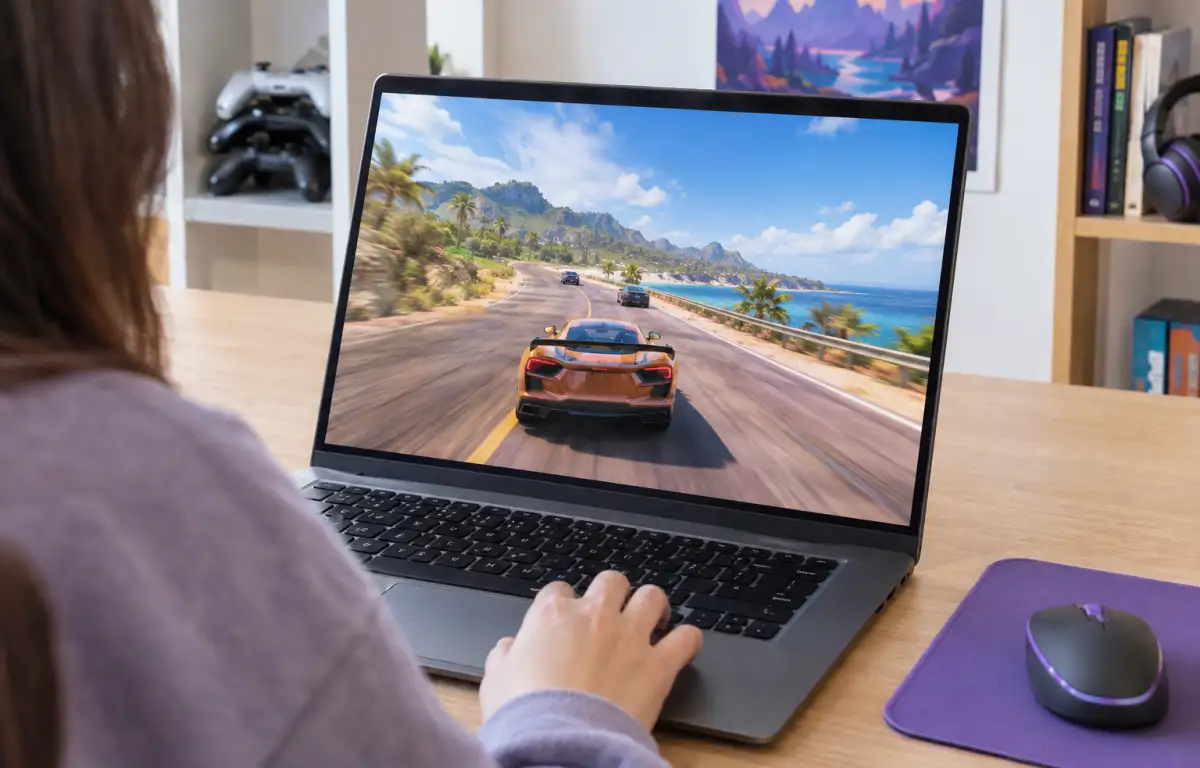
Aristeem Play lets you launch Forza Horizon 5 from its Game Library without installing the full game on your local device. Select the game and click Install & Play to start a cloud gaming session. The game runs on Aristeem’s cloud hardware, while video, audio, and your controls are streamed between the session and your device. Depending on the game version, you may need to sign in to a supported game store.
Aristeem Play does not replace or manage the game’s save system. Your progress remains tied to the game version and account used to save it. When returning to an existing game, use the same supported account and allow synchronization to finish before closing the session. For more details about accessing the game, see our guide on how to play Forza Horizon 5 online.
Keep Your Forza Horizon 5 Progress Accessible
Aristeem Play is useful when you want to continue playing Forza Horizon 5 without keeping a large game installation on every computer. This can be especially convenient when switching between devices, working with limited local storage, or using a laptop that is not suited to running demanding games locally.
Open the Game Library, select Forza Horizon 5, and click Install & Play to access the game through cloud gaming. You can use your device to view and control the session while Aristeem’s cloud hardware handles the game workload. Your existing progress remains accessible through the game’s supported save system, so you can spend less time preparing local installations and more time playing.